What is Multi-Factor Authentication (MFA)?
Enabling Multi-Factor Authentication (MFA) adds an extra layer of security to your mMP account.
By using an authenticator app or receiving verification codes via SMS or email, you can protect your account against unauthorized access, even if your password is compromised.
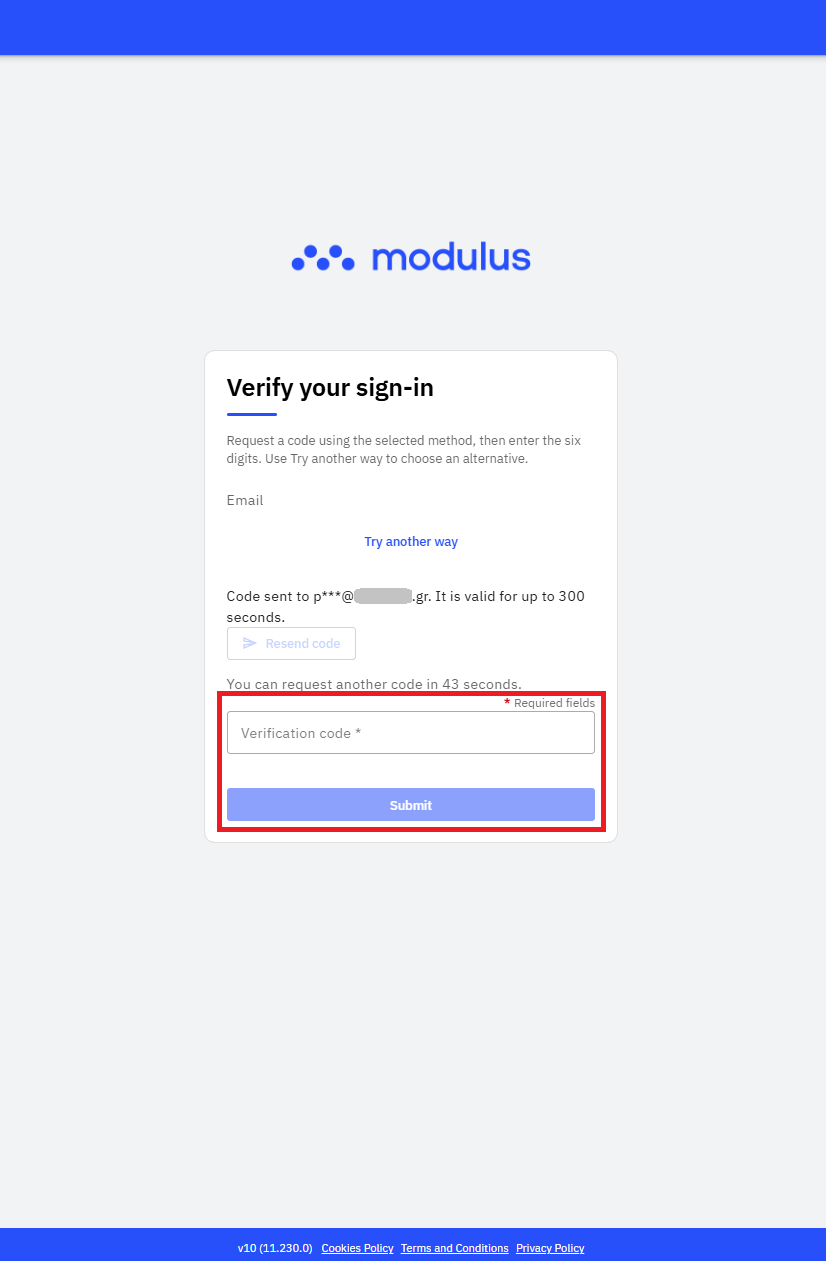
The sign-in process with MFA enabled involves two steps:
-
Enter your sign-in credentials: Enter your username and password.
-
Verify your identity: Enter the one-time verification code provided through your chosen authentication method.
The modulus Messaging Platform (mMP) supports MFA via an authenticator app, SMS, and email.
Why MFA is important for your mMP account
Your mMP account is essential for managing your messaging services.
Your account gives you access to features and information about the modulus Messaging Platform, such as sending messages, topping up and viewing your call history.
By enabling MFA, you add an extra layer of protection when signing in. Even if your password is compromised, an unauthorized user would still need to complete the second verification step.
This significantly reduces the risk of unauthorized access to your account.
How to enable MFA on your mMP account
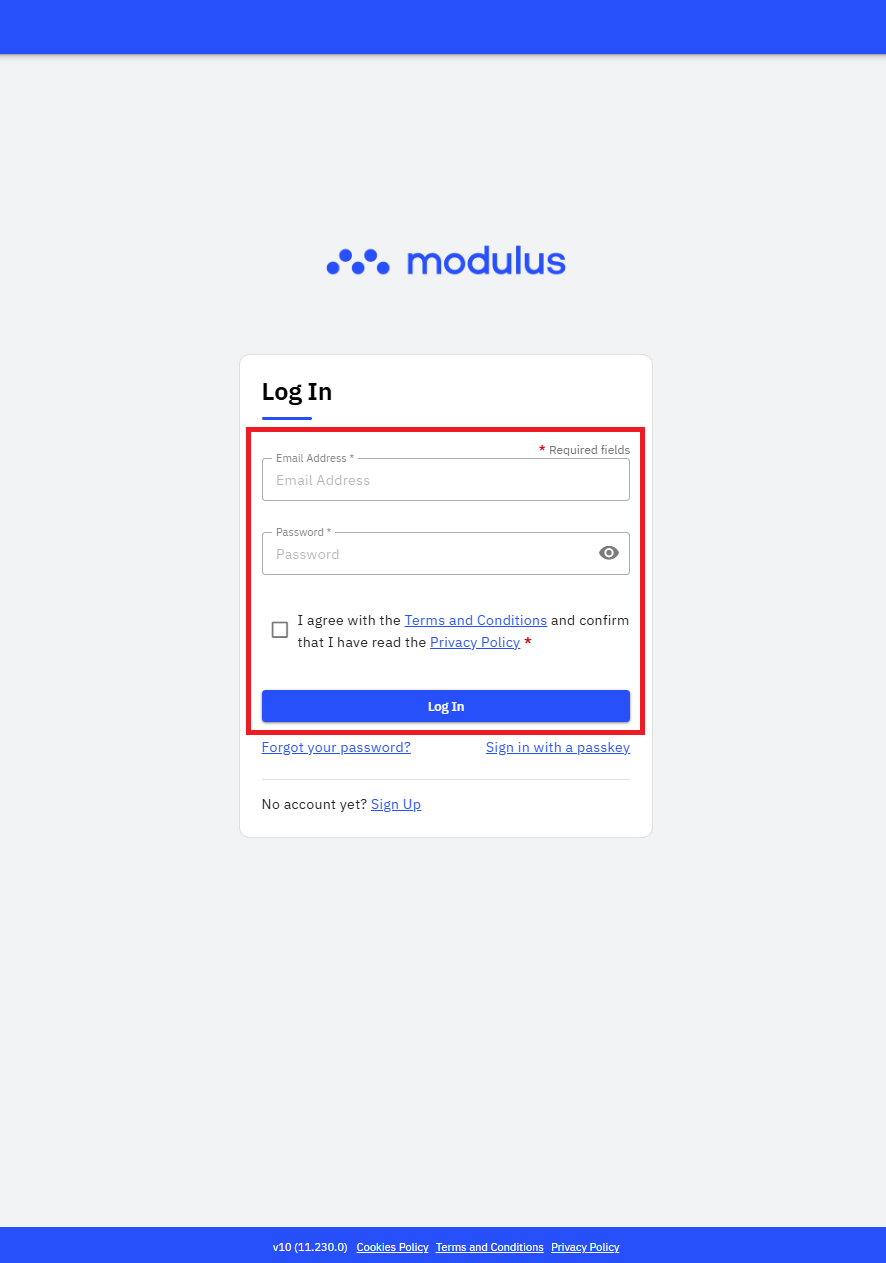
Step 1: Sign in to mMP
Visit the mMP sign-in page and enter your username and password to sign in.
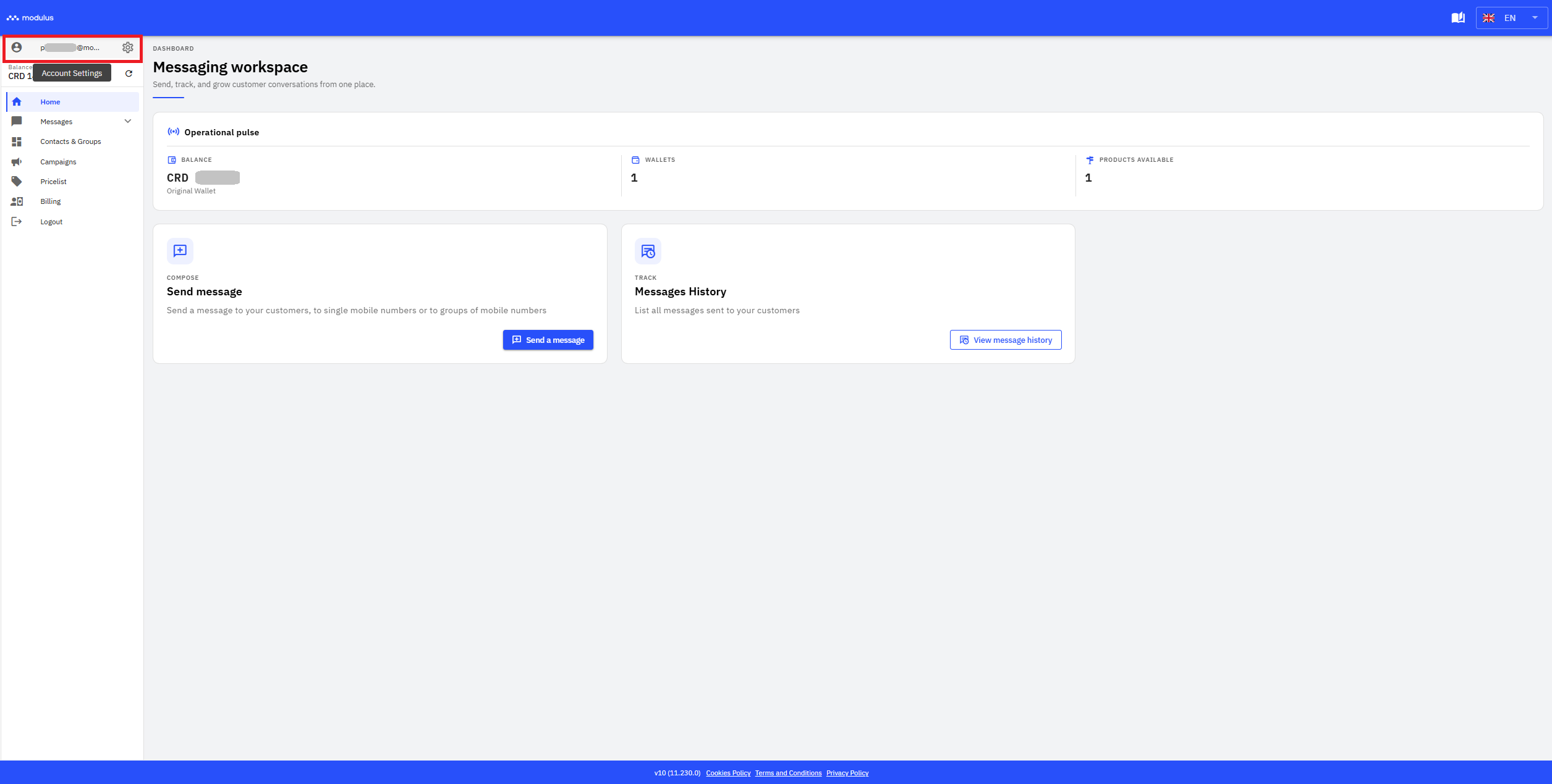
Step 2: Go to Settings
After signing in, go to the Settings menu.
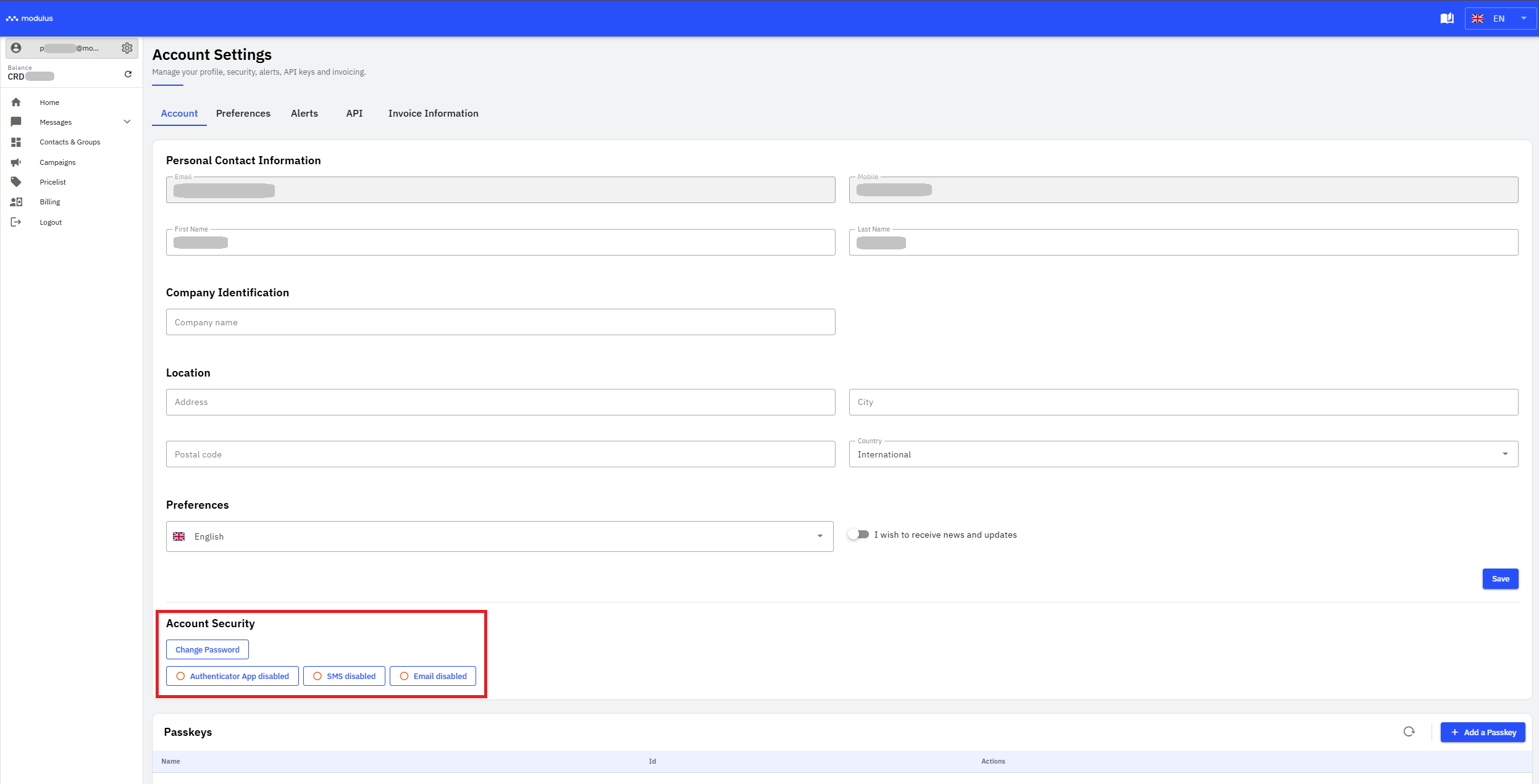
Step 3: Locate the security settings
Under Settings, find the following section:
Account → Account Security
This section displays the available MFA methods:
-
Authenticator App: Verification through an authenticator app on your mobile phone.
-
SMS: Verification using a code sent via SMS.
-
Email: Verification using a code sent to your email address.
Step 4: Choose a verification method
Select the MFA method you wish to enable and follow the corresponding instructions.
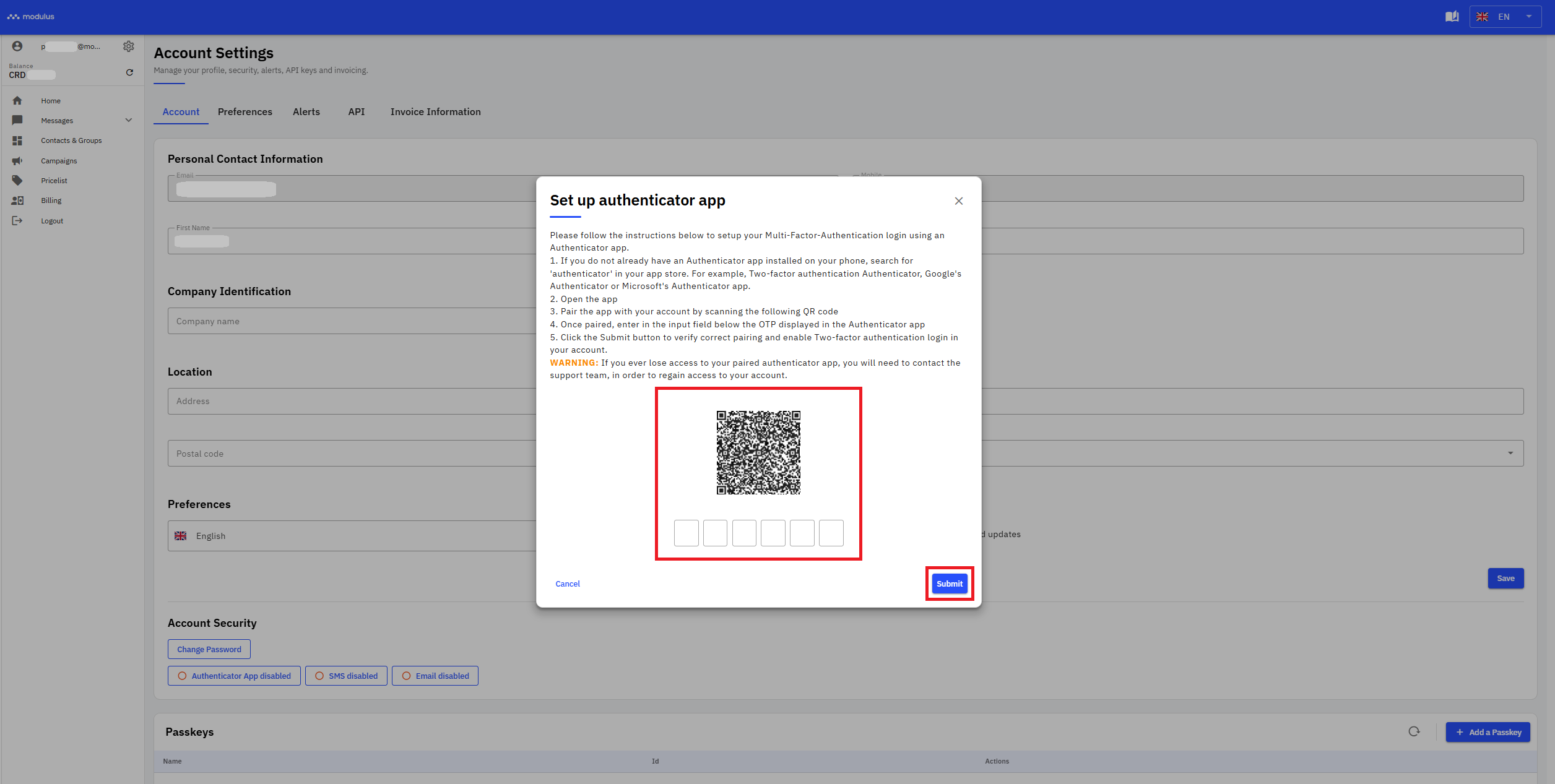
Option A: Enable MFA using an authenticator app
This method uses an authenticator app installed on your smartphone to generate one-time verification codes.
How to enable this method
-
Select Authenticator App disabled.
-
In your authenticator app, select Scan / Scan QR Code to scan the QR code and link your app to the platform.
-
Enter the one-time password (OTP) displayed in your app into the six fields and select Submit. The message "Authenticator App enabled" will appear.
Option B: Enable MFA using SMS
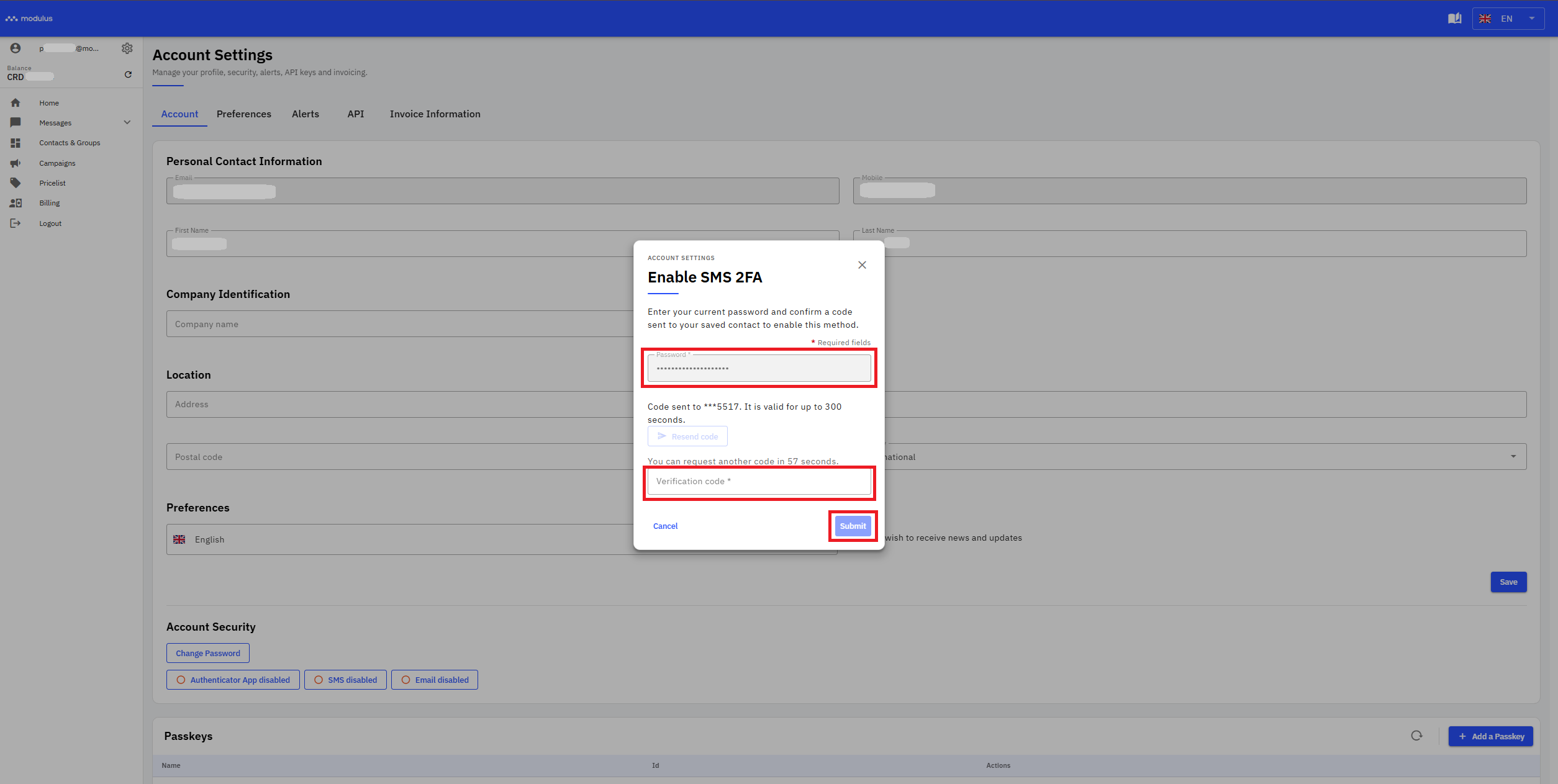
The SMS method allows you to verify your identity using a one-time code sent to your mobile phone.
How to enable this method
-
Select SMS disabled.
-
In the Password field, enter the password for your mMP account, then select Send Code. A one-time password (OTP) will be sent via SMS to your registered mobile number.
-
Enter the code you received and select Submit. The message "SMS enabled" will appear.
Option C: Enable MFA using email
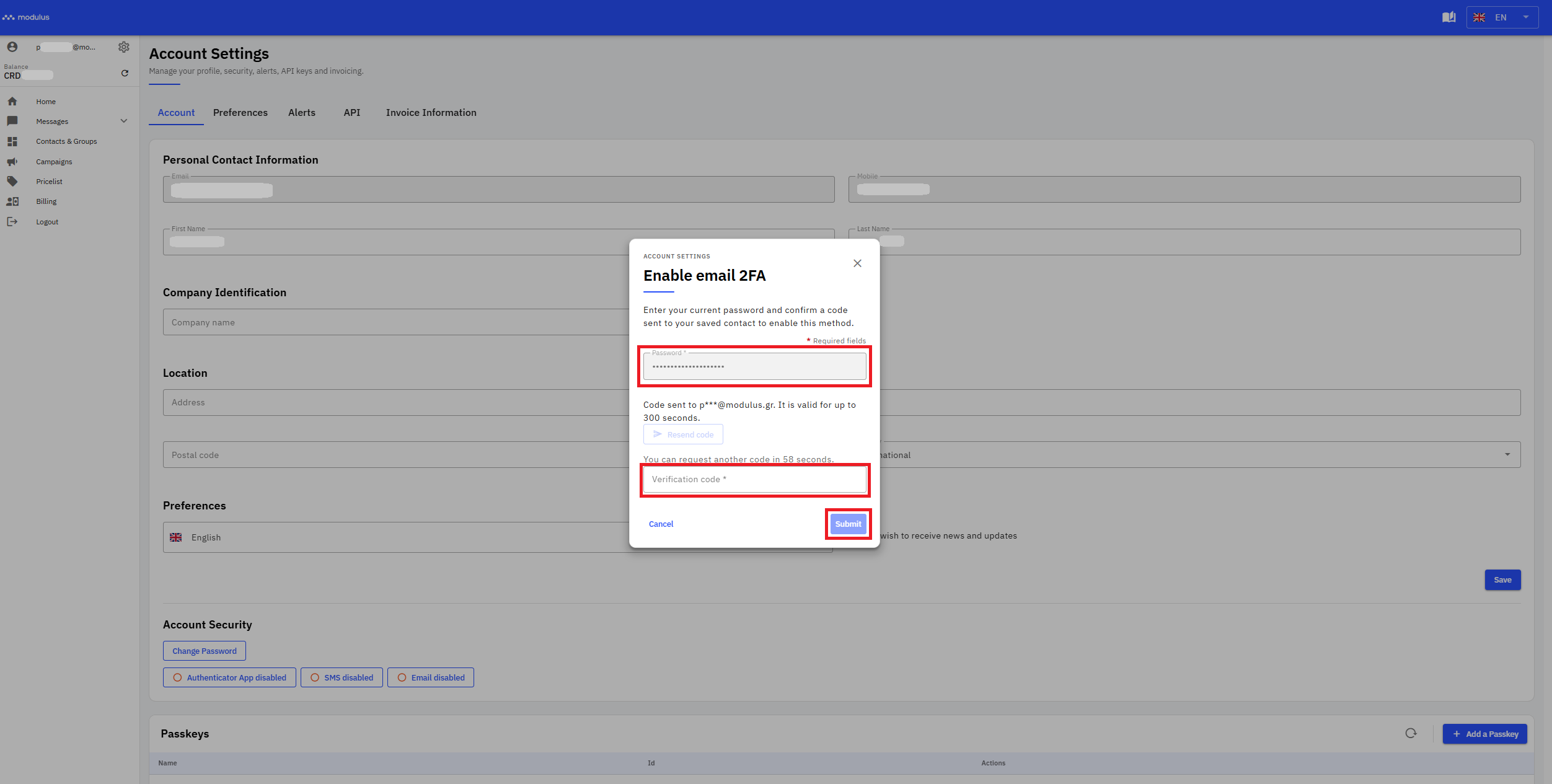
This method allows you to verify your identity using a one-time code sent to your registered email address.
How to enable this method
-
Select Email disabled.
-
In the Password field, enter the password for your mMP account, then select Send Code. A one-time password (OTP) will be sent to your registered email address.
-
Enter the code you received and select Submit. The message "Email enabled" will appear.
Signing in to your mMP account after enabling MFA
After enabling MFA, the sign-in process will include an additional verification step to authenticate, using the MFA method(s) you have enabled.
-
Go to the mMP sign-in page.
-
Enter your username and password.
-
Complete verification using the MFA method you have enabled.
-
Once your identity has been verified, you will be able to access your account.